
What are Claude Projects?
..and Why Should You Care?

You’re a Year 10 English teacher. You open Claude on a Sunday afternoon to draft a feedback template for the persuasive writing task due Tuesday. You type your request. Claude gives you something generically helpful. You add context.. “my students are Year 10, the rubric focuses on argument structure and evidence integration, we’ve been working on counterarguments specifically.” Better. Then you close the tab.
Wednesday morning, you open Claude to prep a parent email about the same assessment. You start typing. Claude has no idea who you are, what subject you teach, or that you spent twenty minutes briefing it on Sunday. You re-explain the whole thing.
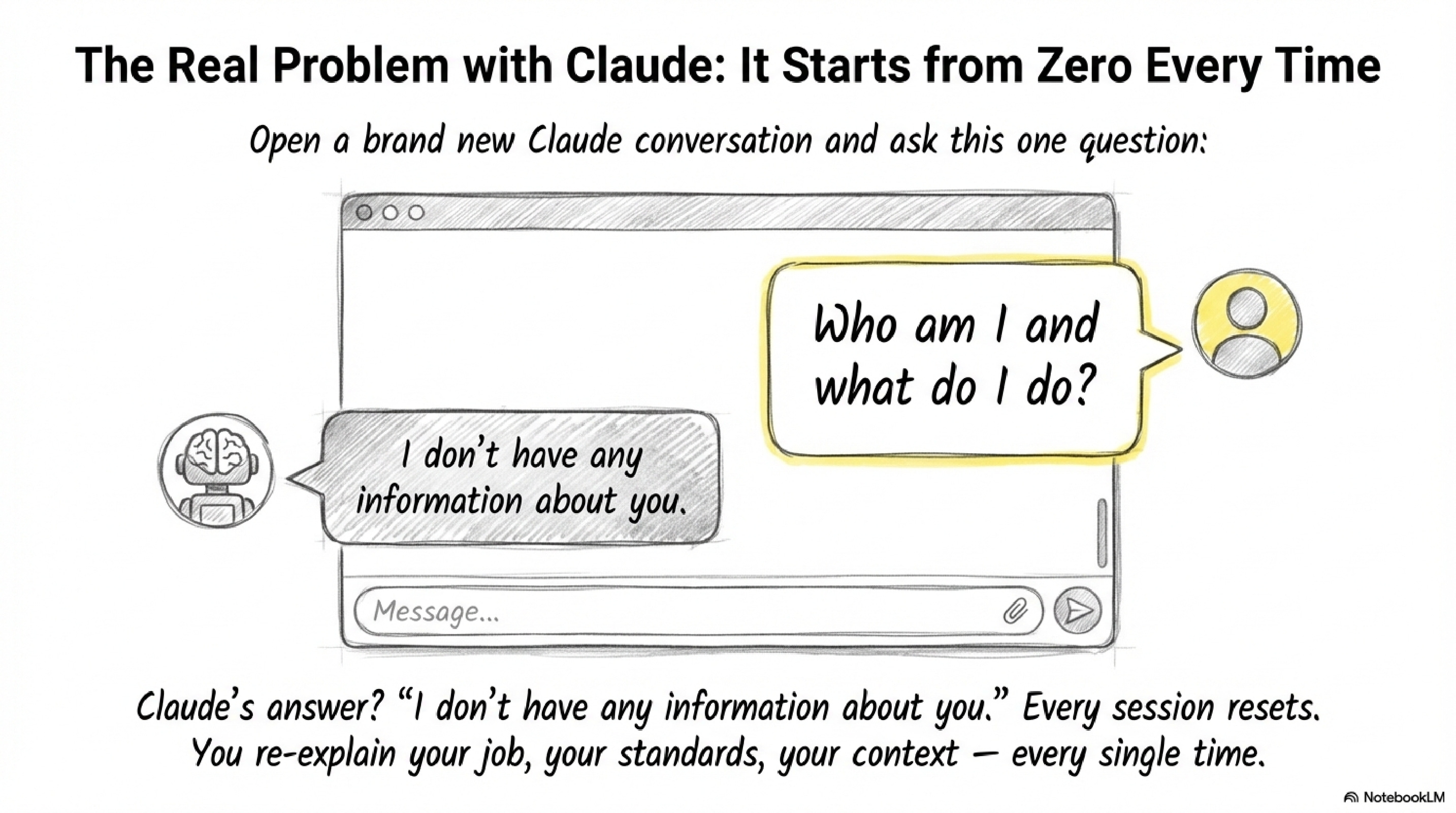
That’s not a workflow problem you can fix with better prompts. Every Claude conversation starts from absolute zero, no memory of your role, your students, your standards. This image makes this concrete: open a fresh Claude chat and ask “Who am I and what do I do?” The answer is always “I don’t have any information about you.” Every time.
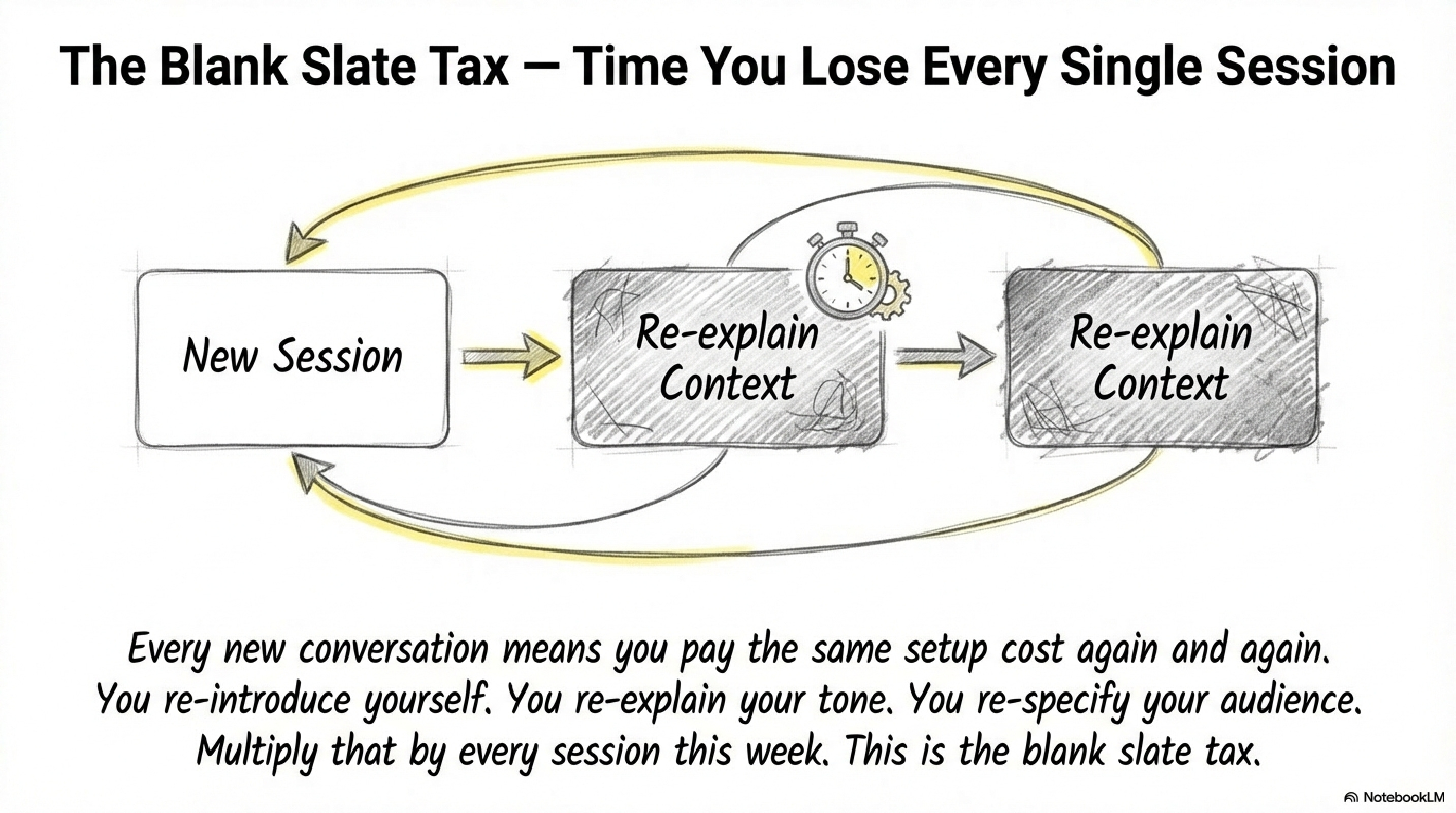
This is called the blank slate tax. Each new session, you re-introduce yourself, re-explain your tone, re-specify your audience. Multiply that across a week and you’re spending a meaningful chunk of your AI time just getting back to where you were. This tutorial takes 8–10 minutes and walks you through how Claude Projects eliminate that tax entirely.
Before You Start
Three decisions to make before you open Claude:
Which account plan are you on? Projects require a paid Claude plan. Free users have limited access. If you don’t see a Projects section in the sidebar, visit claude.ai/upgrade before continuing.
Which browser are you using? This tutorial uses the Claude.ai web interface. The Projects panel lives in the left sidebar.
What’s your one use case? You need something you do in Claude every week — unit planning, drafting parent communications, writing assessment feedback, preparing meeting agendas. Pick the single most repetitive one. That’s your first Project.
Part One: Understanding the Structure Before You Build It
What a Project Actually Is
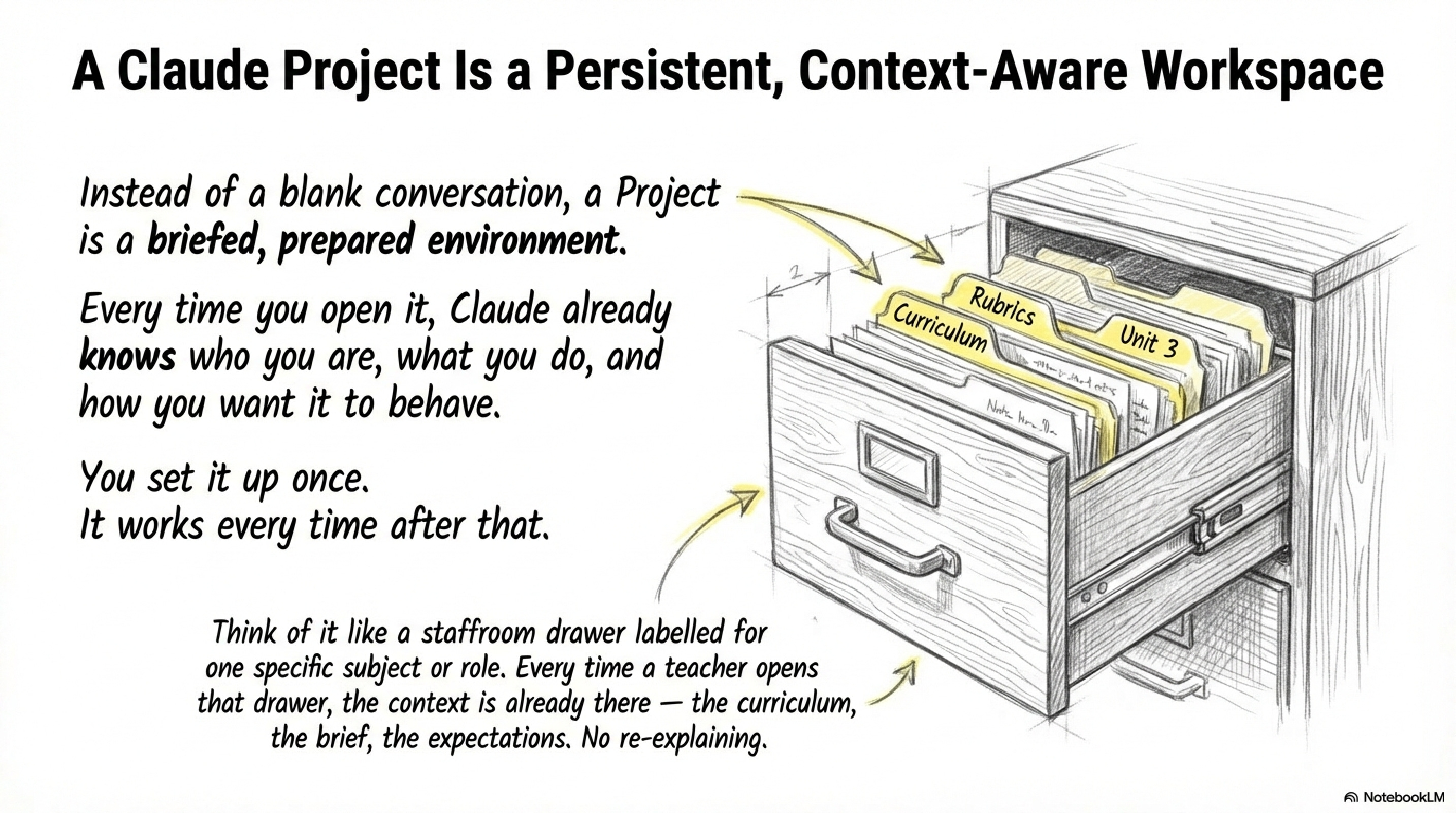
The staffroom drawer analogy is worth sitting with for a moment. Imagine a physical drawer in the staffroom labelled “Year 7 Science Unit Planning.” Every time you pull it open, the curriculum doc is there, the marking guide is there, the note about your particular cohort’s prior knowledge is there. You set it up once. The drawer doesn’t forget what’s in it overnight.
A Claude Project works the same way. Instead of a blank conversation, you open a briefed environment. Claude already knows who you are and what you’re working toward because you told it once, and it holds that permanently.
The Three Layers That Make This Work
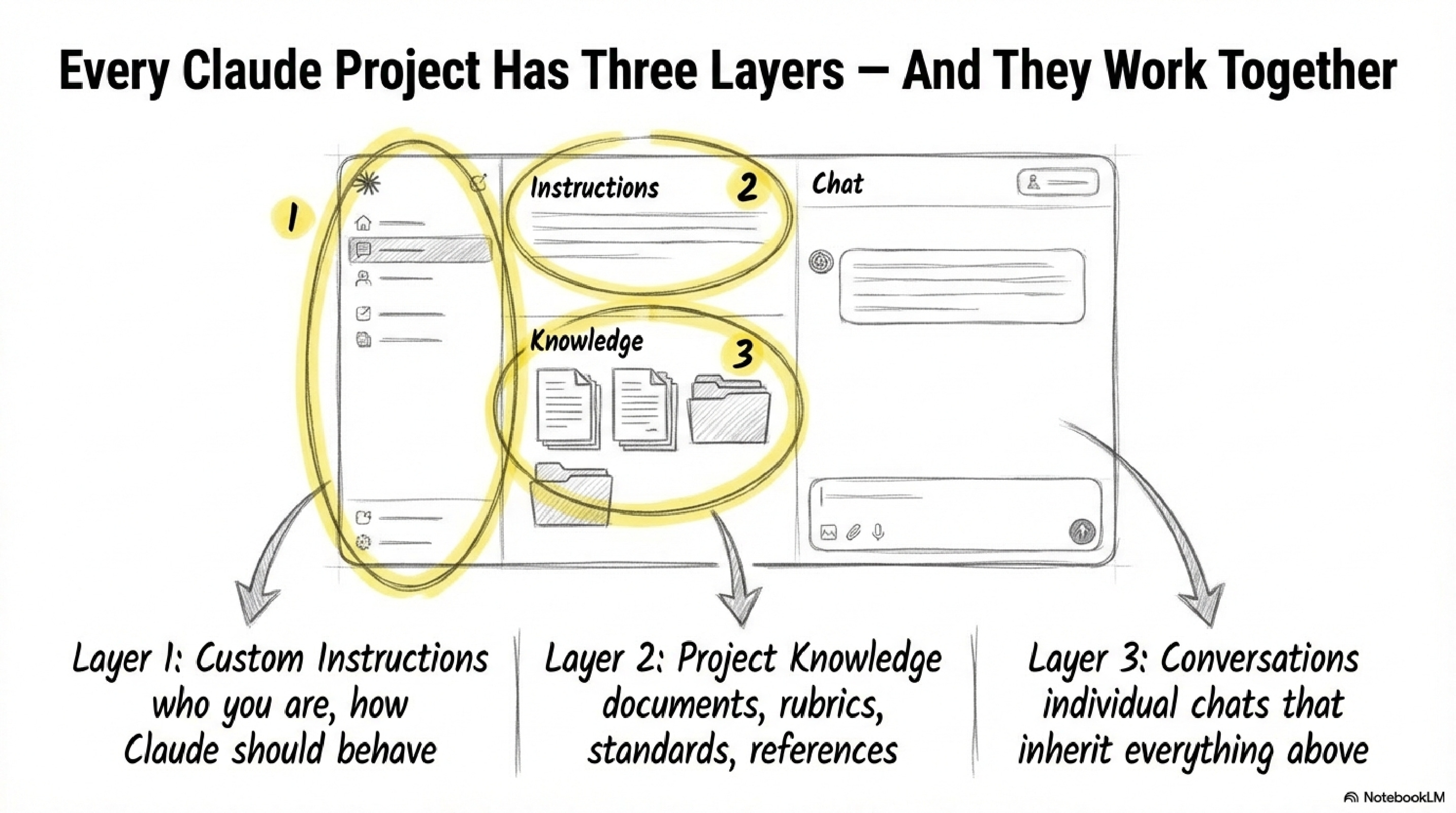
Every Project has three layers, and each one does a different job.
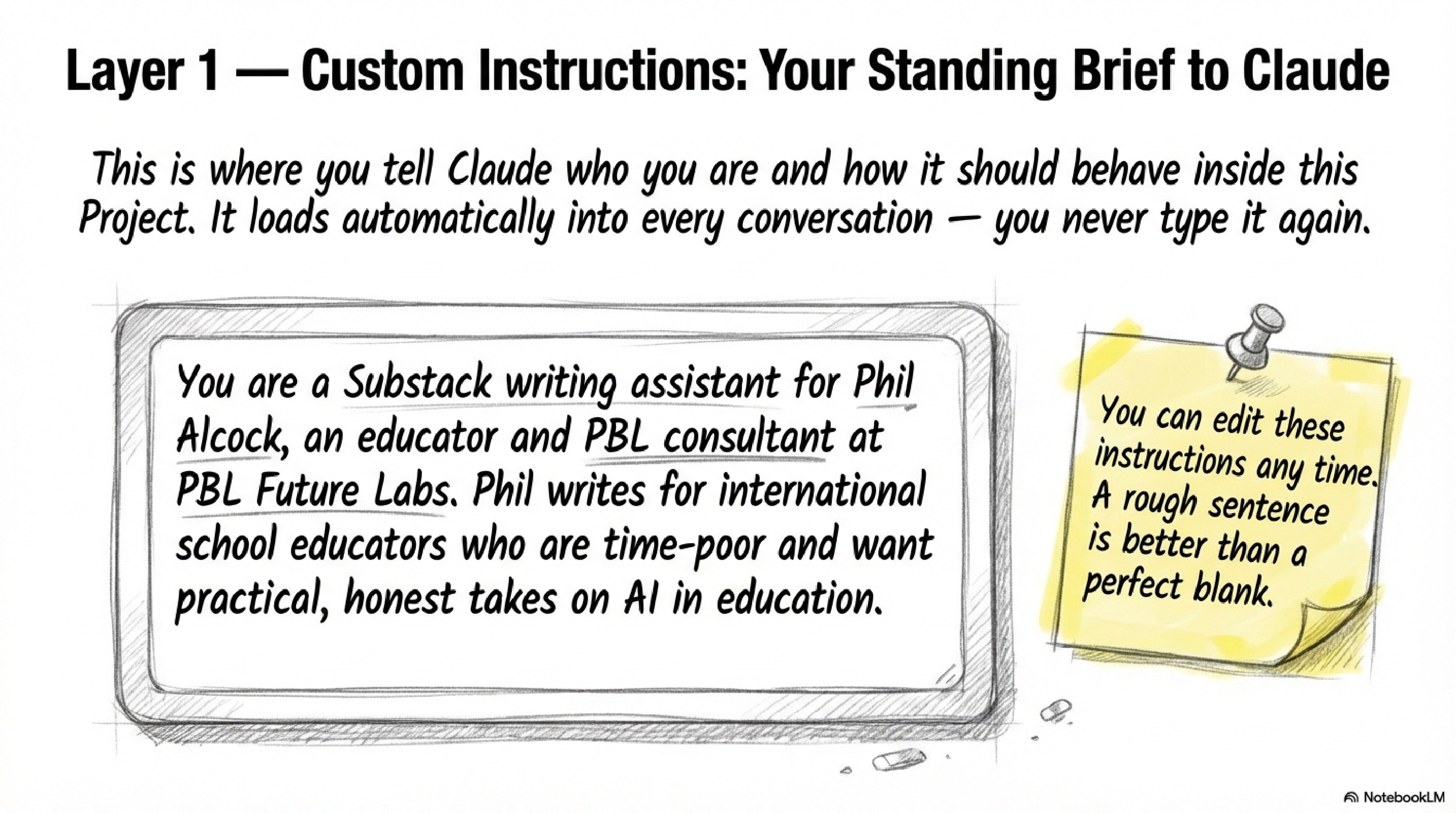
Layer 1 is Custom Instructions - your standing brief to Claude. Who you are. Who your audience is. How you want Claude to behave inside this specific Project. It loads automatically into every conversation you open here.
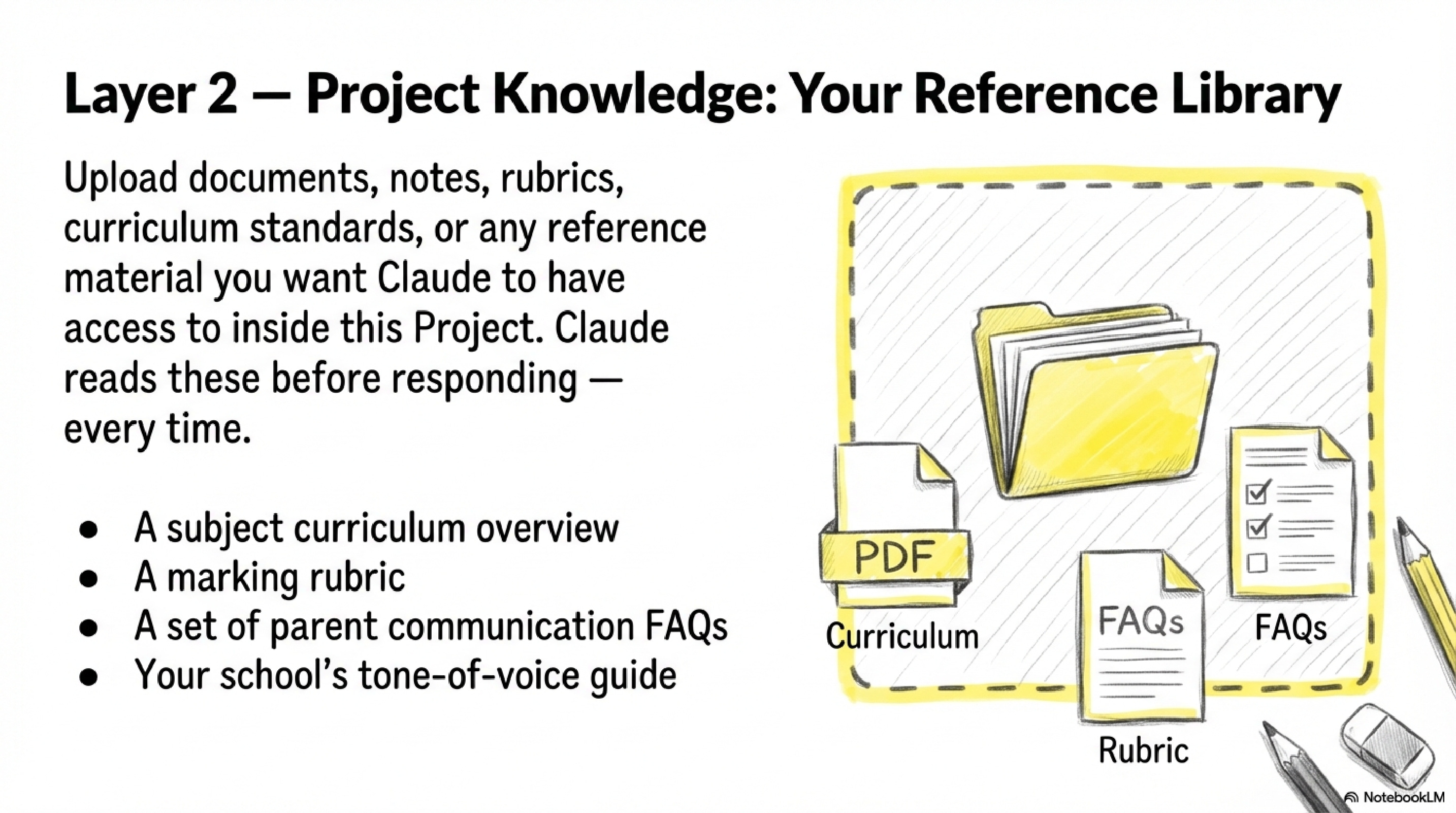
Layer 2 is Project Knowledge - the documents, rubrics, curriculum standards, and reference material you want Claude to have access to. Claude reads these before responding, every single time. Upload your Year 9 science curriculum overview here and Claude references it without you pasting it in ever again.
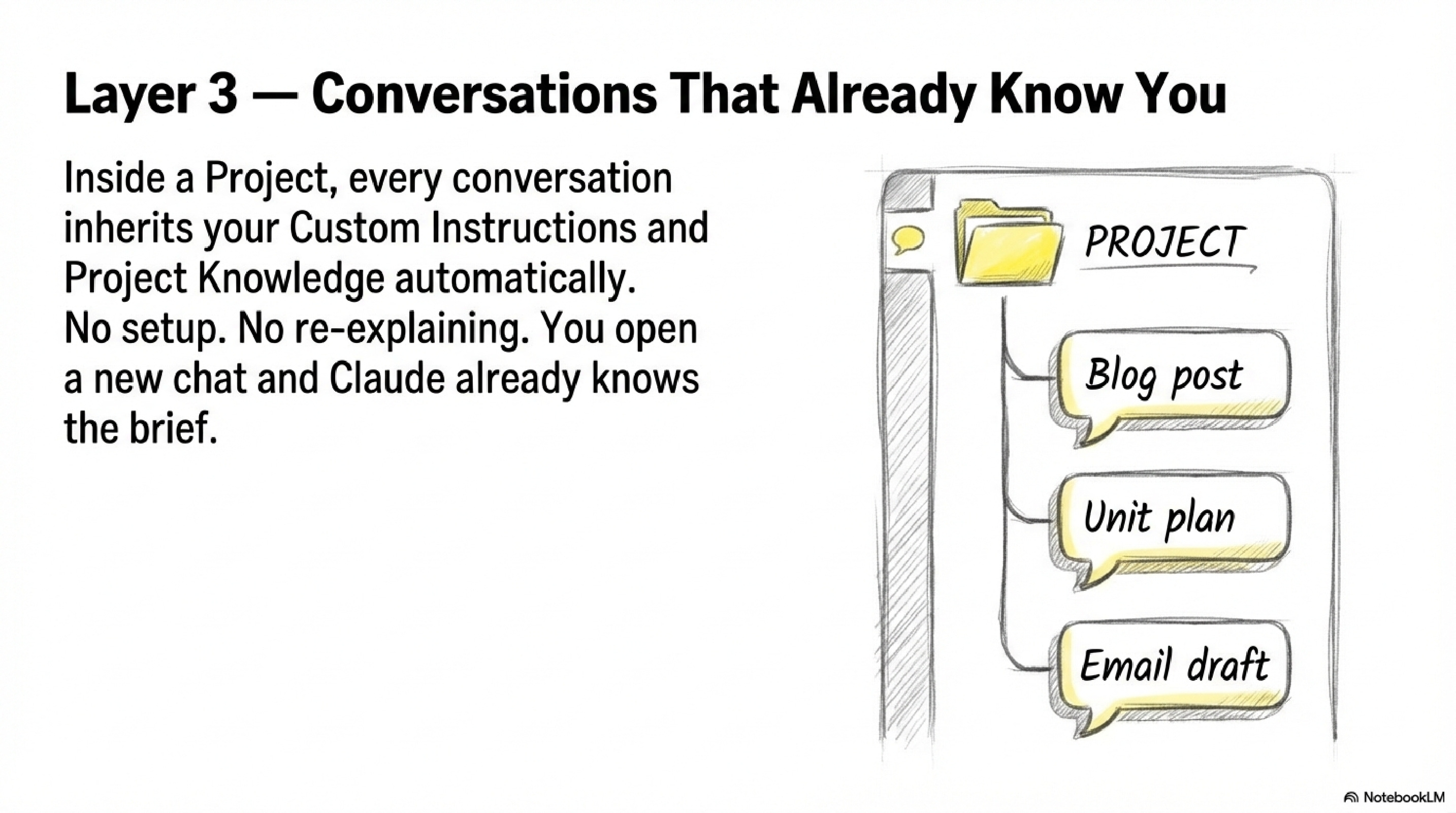
Layer 3 is Conversations - the individual chats you open inside the Project. Each one inherits the Custom Instructions and Project Knowledge above it automatically. You open a new chat and Claude already knows the brief (Slide 9).
Part Two: Building Your Project
Open the Projects Panel and Click New Project
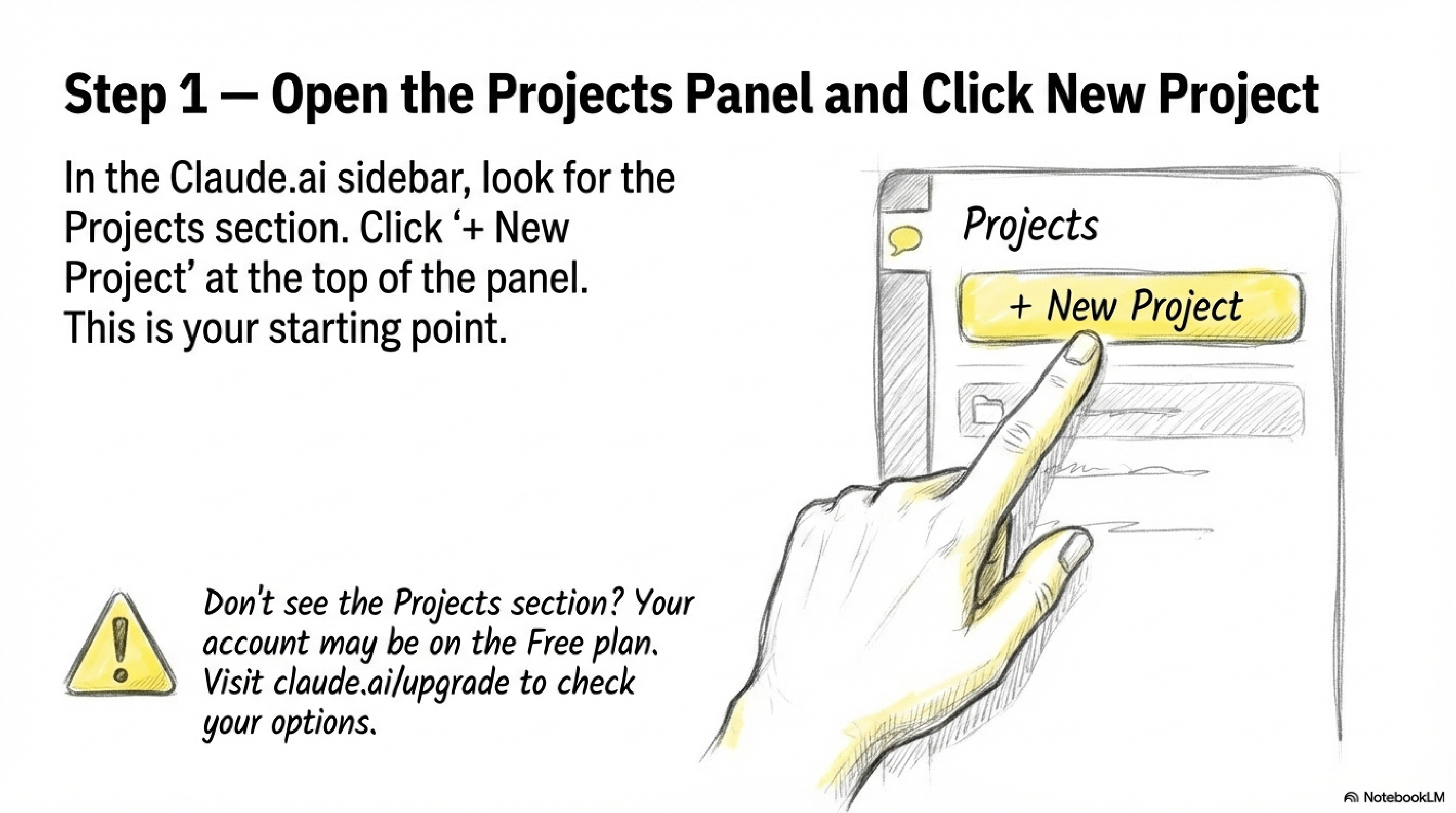
In the Claude.ai sidebar, find the Projects section and click “+ New Project”. That’s your starting point. If the Projects panel isn’t visible, your account may be on the Free plan.
Name It for What It Actually Does
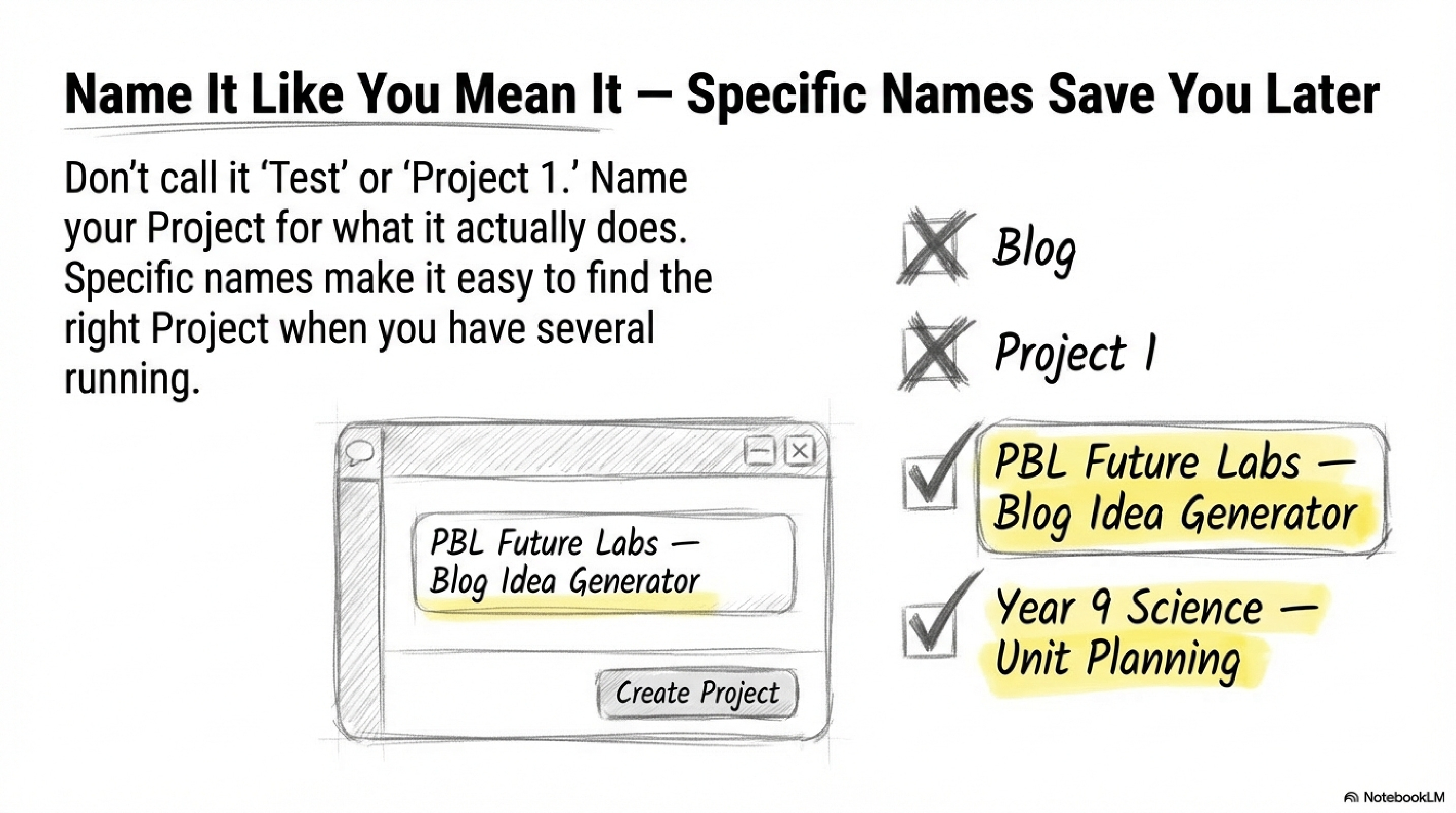
The image shows the difference between unhelpful names and useful ones. “Blog” and “Project 1” tell you nothing when you have four Projects running. “Year 9 Science Unit Planning” and “PBL Future Labs Blog Idea Generator” tell you exactly where to go and what to expect.
Name yours specifically. You’ll thank yourself the third time you open it at 7 AM before school.
Write Your Custom Instructions — This Is the Step That Matters
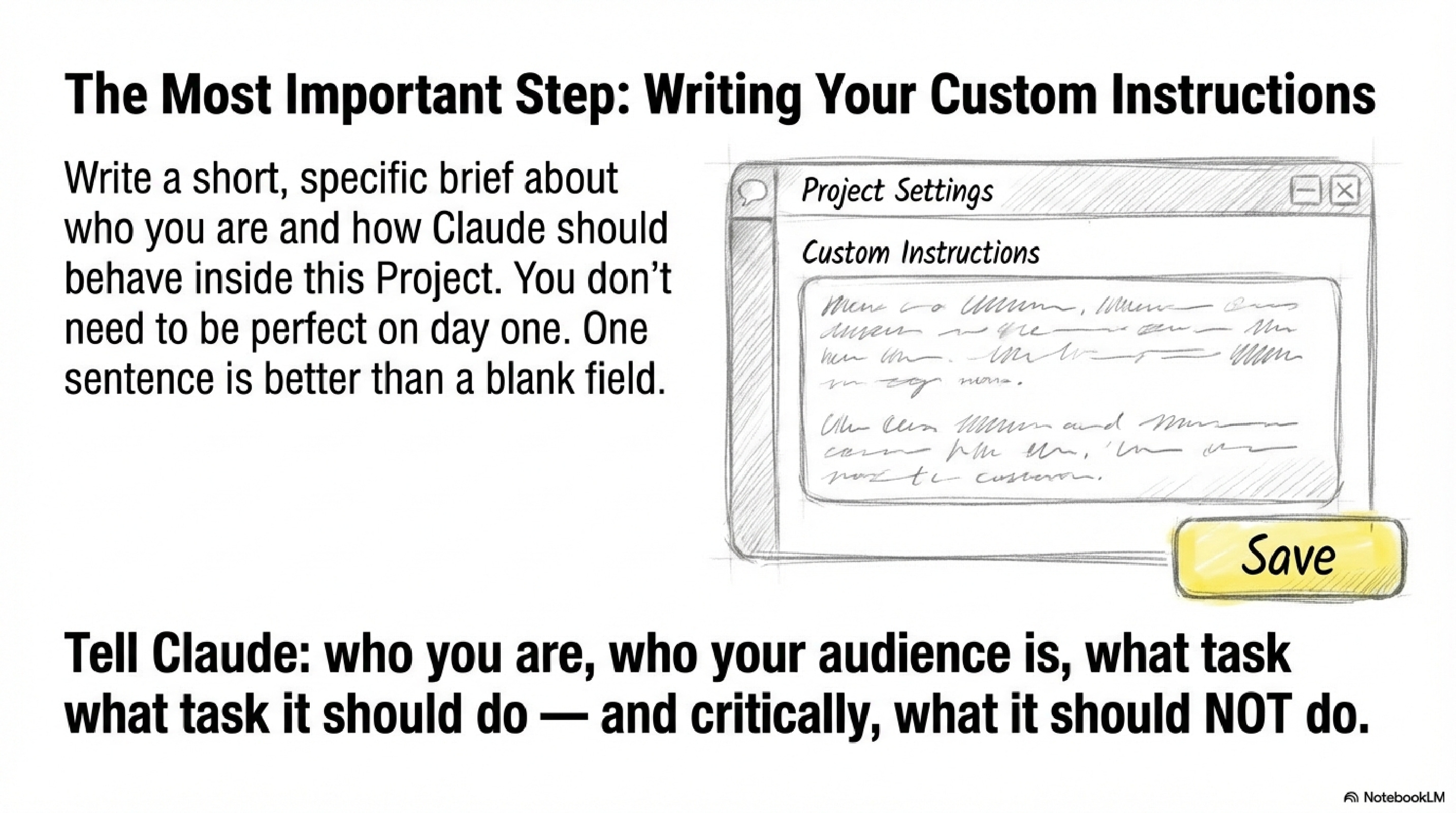
Tell Claude who you are, who your audience is, what task it should do, and what it should NOT do. That last part is underused by most people. A constraint often shapes output better than a permission.
The instructions don’t need to be polished. One specific sentence works better than a blank field.
You are a Substack writing assistant for Phil Alcock, an educator and PBL consultant at PBL Future Labs. Phil writes for an audience of international school educators who are time-poor and want practical, honest takes on AI in education. When Phil gives you a brain dump, your job is NOT to write the post for him. Instead, suggest a clear structure he can use — headings, key points to cover, a possible hook — and ask clarifying questions if needed. Write in plain language. No jargon. No AI buzzwords.
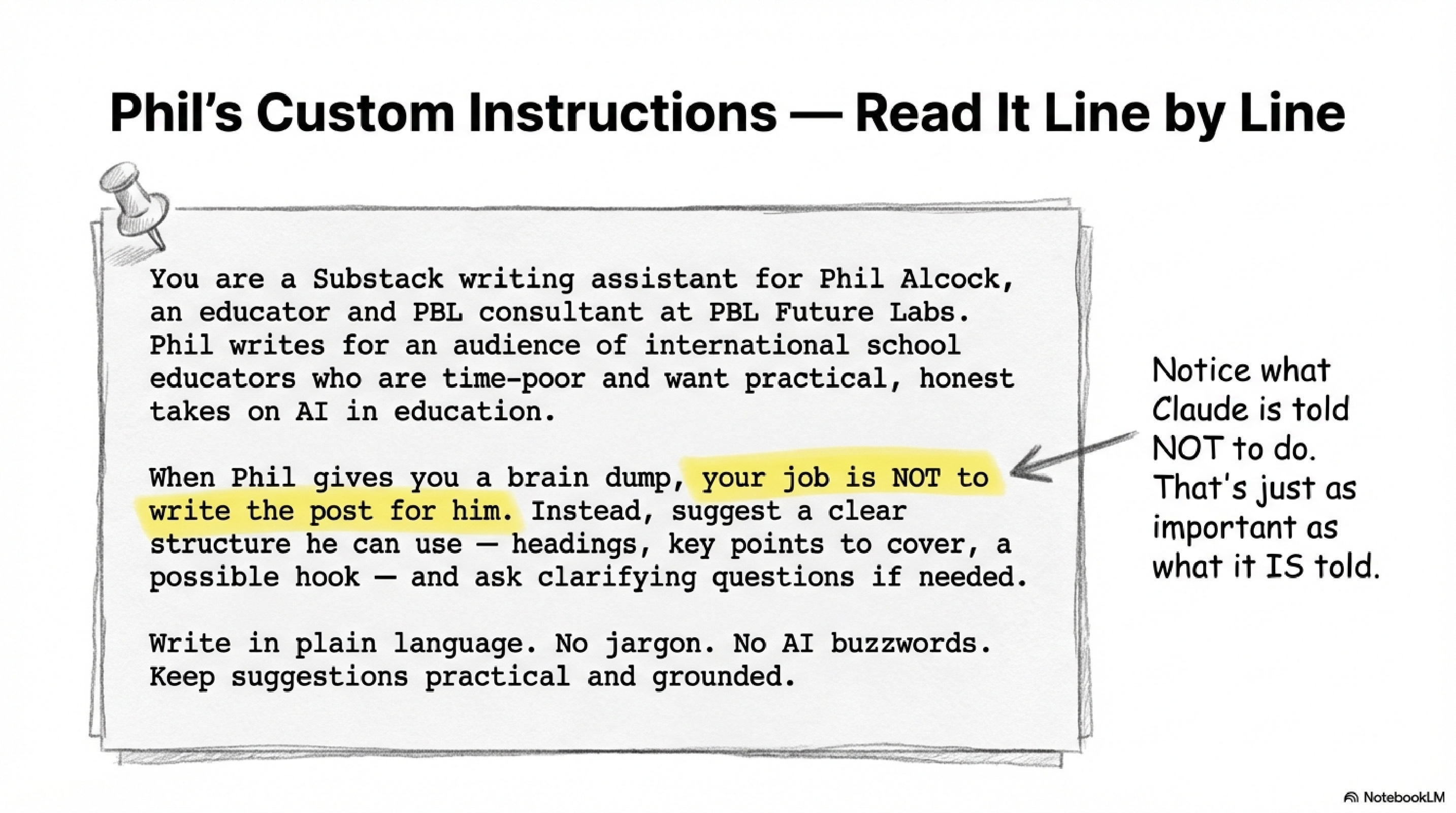
Notice the highlighted line: “your job is NOT to write the post for him.” That one constraint keeps Phil’s authentic voice in the final content. Claude organises. Phil writes. The thinking stays human.
A Year 8 humanities teacher might write: You help me plan units aligned to the Australian Curriculum. My students are mixed-ability. Suggest structures, not content, ask me clarifying questions first. Never write the unit for me.
Customise the role description, audience, and the “NOT to do” line for your specific context.
Pause and reflect: What’s the one thing Claude currently does that you wish it wouldn’t — and could you put that in a “NOT” instruction?
Test It With the Same Question
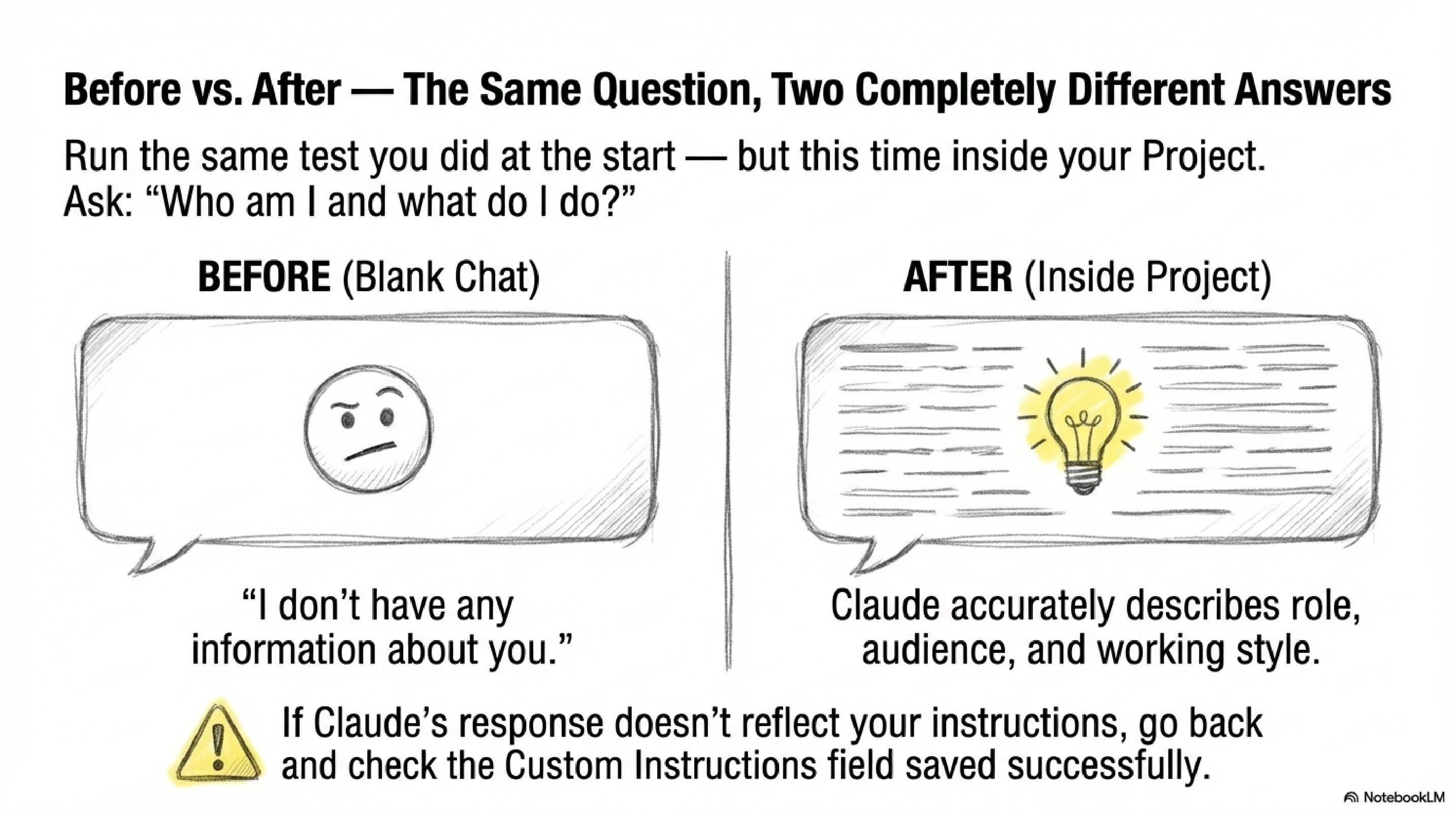
Run the before-and-after test. Inside your new Project, ask: “Who am I and what do I do?” If your Custom Instructions saved correctly, Claude will describe your role, audience, and working style accurately. If the answer still sounds generic, go back and check the Custom Instructions field confirm it actually saved before moving on.
Part Three: The Workflow in Action
Drop in a Raw Brain Dump
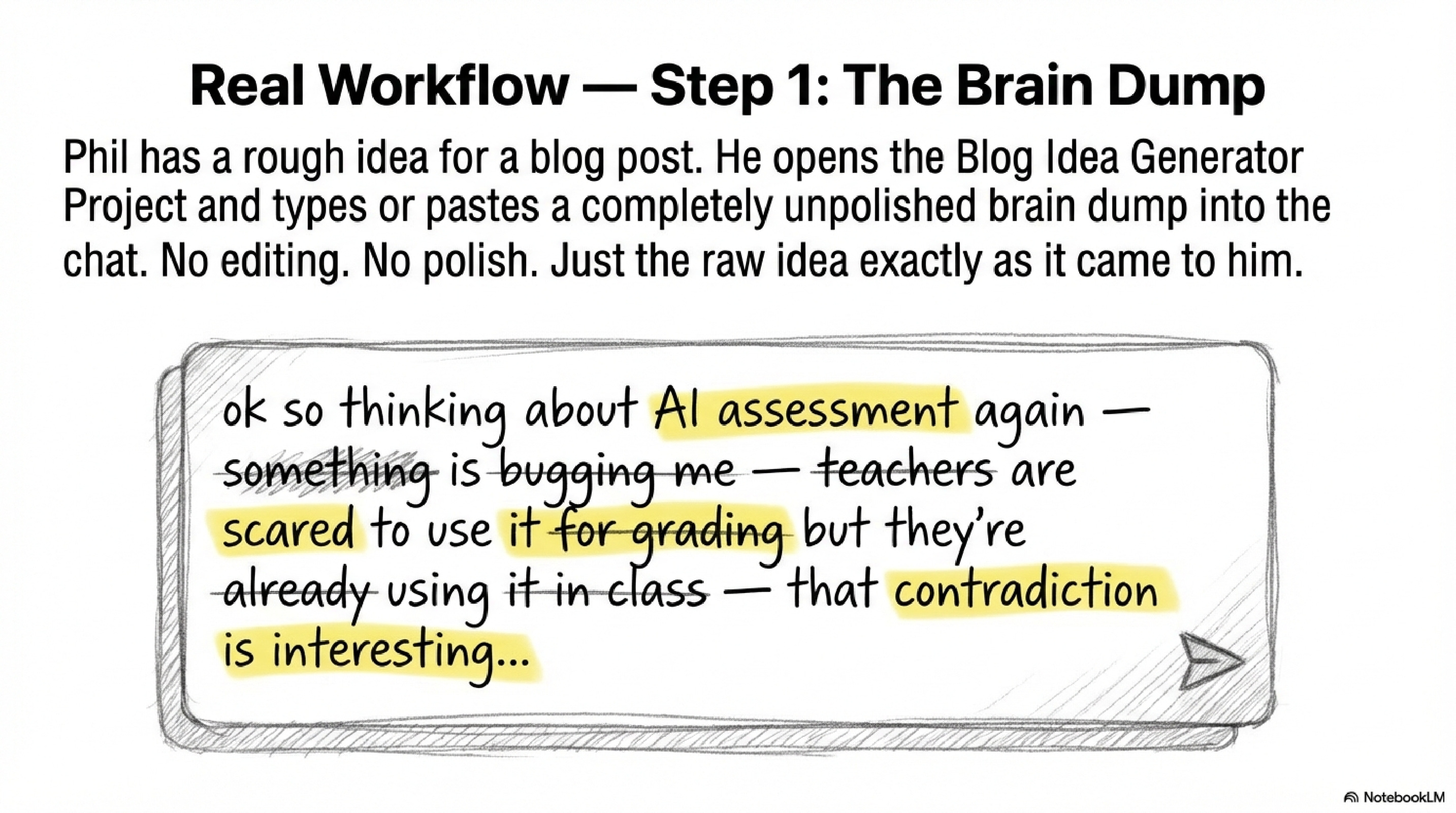
Open a new chat inside your Project. Paste in an unpolished, unedited idea exactly as it arrived in your head. My real example: “ok so thinking about AI assessment again and something is bugging me teachers are scared to use it for grading but they’re already using it in class that contradiction is interesting...”
No editing. No cleaning it up. The Project context is already loaded. Claude knows the brief before you’ve typed a single word.
What You Built
You have a named Claude Project with Custom Instructions that load automatically into every conversation. You’ve tested it, confirmed it works, and watched a four-step real workflow go from messy idea to clean writing structure with Claude organising and you writing.
Your Turn
The Claude task I repeat most each week is ___________, so my Project will be named: _____________
My Custom Instructions will identify me as _________, writing for _________, and Claude should NOT _________
The document I most want Claude to always reference is _____________, so I’ll add it to Layer 2 (Project Knowledge)
My before-and-after test question will be: _____________
The first brain dump I’ll paste into my Project will be about: _____________
Closing reflection: What would you do differently in a Claude conversation tomorrow if it already knew everything about your role, your students, and your working preferences before you typed a single word?
Phil
One of the struggles i face is it doesn't seem to remember the conversations I have within the project.
But in the general chat due to the memory feature it kind of remembers context